

















“Can you cast Netflix to TV? How to cast Netflix to TV through my iPhone?” These must be frequently asked by people who would like to watch Netflix movies and shows on their TV through their mobile devices. There are quite a few causes for you to cast Netflix to TV. For example, you might want to watch Netflix movies on a bigger and higher-definition screen, or your device’s screen is scratched or damaged. Or, you might want to watch Netflix movies with many people. In such cases, casting Netflix to TV would be a wonderful choice. Then, the questions come: can you cast Netflix to TV, and how to cast Netflix to TV from phone or laptop? You will get satisfactory answers in this post.

- Can You Cast Netflix to TV?
- How to Cast Netflix to TV from Phone/Laptop?
1. Cast Netflix to TV without Netflix cast limit [the best]
2. Cast Netflix to TV using Chromecast [phone/PC]
3. Cast Netflix to TV using an external cable [phone/PC]
4. Cast Netflix to TV via screen mirroring [phone only]
Can You Cast Netflix to TV?
To make things easy and straightforward, yes, you can cast Netflix to TV from a laptop or phone as long as you have Netflix app installed on your phone or laptop. Actually, Netflix has enabled content casting from mobile devices to big screen TV, if your TV has no Netflix app installed.
However, there are quite a few Netflix cast limits that might restrict your Netflix casting experience, as listed below:
- Subscription requirement: To cast Netflix to TV from phone or laptop, you must be an ad-free Netflix subscriber. Ad-supported Netflix subscription won’t be allowed for casting to TV or other devices.
- You can’t cast downloaded content on the Netflix app to TV from a laptop or mobile phone, which is one of the Netflix download limits.
- Device compatibility limit: You can’t cast Netflix to TV from MacBook since there is no official Netflix app for Mac, even if you download movies from Netflix on Mac. The Netflix cast feature is only available for a few supported devices, including Android phones and tablets, iPhones, iPads, Chromecast, etc.
- Network requirement: Your laptop or phone must be in the same network connection that your TV is in before you can cast Netflix from phone or laptop to TV.
After learning the Netflix cast limits, you can now learn how to cast Netflix to TV from laptop or phone below.
How to Cast Netflix to TV from Phone/Laptop?
There are quite a few different ways for you to cast Netflix to TV from phone or laptop. Here we have collected 4 most frequently used methods for you on how to cast Netflix to TV from phones or laptops.
1. Cast Netflix to TV without Netflix cast limits [the best]
It is the best and easiest way for you to cast Netflix to TV from laptop or phone by downloading Netflix videos to your computer without any Netflix download limits. That is to make use of some 3rd-party Netflix downloaders. There are quite a few best Netflix video downloaders out there that can help you download Netflix movies and shows to your computer’s local drive as independent files, which can then be transferred to your phones for casting to any TV, or directly transferred to your TV as local file for direct playback. By downloading Netflix videos with these 3rd-party Netflix video downloaders, you don’t even need to know how to connect Netflix to TV from phone or laptop. Just transfer the downloaded Netflix videos to TV via a USB drive.
2. Cast Netflix to TV using Chromecast [phone/PC]
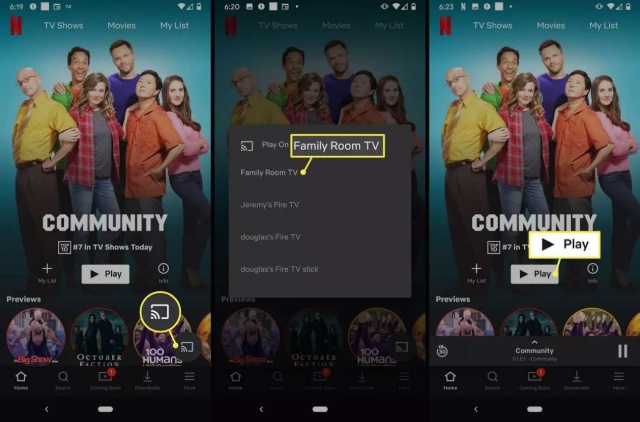
Can you Chromecast Netflix to TV? This might be one of the top-asked questions in casting Netflix to TV, since Chromecast has its fame in mirroring digital content. Of course, you can Chromecast Netflix from laptop to TV easily. You can follow the below steps to learn how to Chromecast Netflix from laptop to TV:
- Connect your Chromecast built-in TV to the same WiFi network as your laptop or phone.
- Kick off the Netflix app on your device and log in.
- On the Netflix app, click the Cast icon.
- Choose the Chromecast device to cast Netflix.
- Then, on Netflix app, play back the target video you want to Chromecast to TV.
Once the content starts playing, Chromecast will cast the playing Netflix content to TV immediately. To stop Chromecasting Netflix to TV, just open the Netflix app on your laptop or phone, click the Cast option, and then click the Chromecast device to choose the Disconnect option.
3. Cast Netflix to TV using an external cable [phone/PC]
Also, you can make use of external cable to cast Netflix to TV from phones and laptops. The detailed operation varies upon what your devices are. For Android phones and tablets, you need to:
- Use a Type C or Type D cable to connect your Android phones as output.
- Use the HDMI end of the cable to connect with TV (older TVs might use VGA end).
- Then you can directly play Netflix on Android phones for casting to TV.
For iPhones or iPads with lightning ports, you need to:
- Use a video cable adapter that is compatible with Netflix to connect your iPhone/iPad to TV.
- Open “Settings > General > About > Apple HDMI Adapter” option to check the Model Number.
- If it displays A1438 or A1621, your video adapter is friendly with Netflix. You can use another cable or HDMI port on your TV for connection.
- If it doesn’t display A1438 or A1621, you need to get another adapter that is compatible with Netflix.
If your iPhones or iPads come with a USB-C port, you need to:
- Use a video cable adapter that supports Netflix video playback if your TV uses an HDMI port.
- Connect the phone to TV via the standard cable if your TV has a USB-C or Thunderbolt port.
4. Cast Netflix to TV via screen mirroring [phone only]
If you want to cast Netflix to TV from phones, you can also try to mirror Netflix contents to TVs from Android phones and iPhone/iPad devices. The detailed steps are listed below:
- Connect your phone and TV to the same Wi-Fi network.
- Kick off the Netflix app on both phone and TV.
- And then log into the Netflix app on both devices.
- On your phone, open the Cast icon and then select TV to watch Netflix content.
- Then, just select the target Netflix video and play it back.
- The Netflix video will start to play on the TV screen immediately.